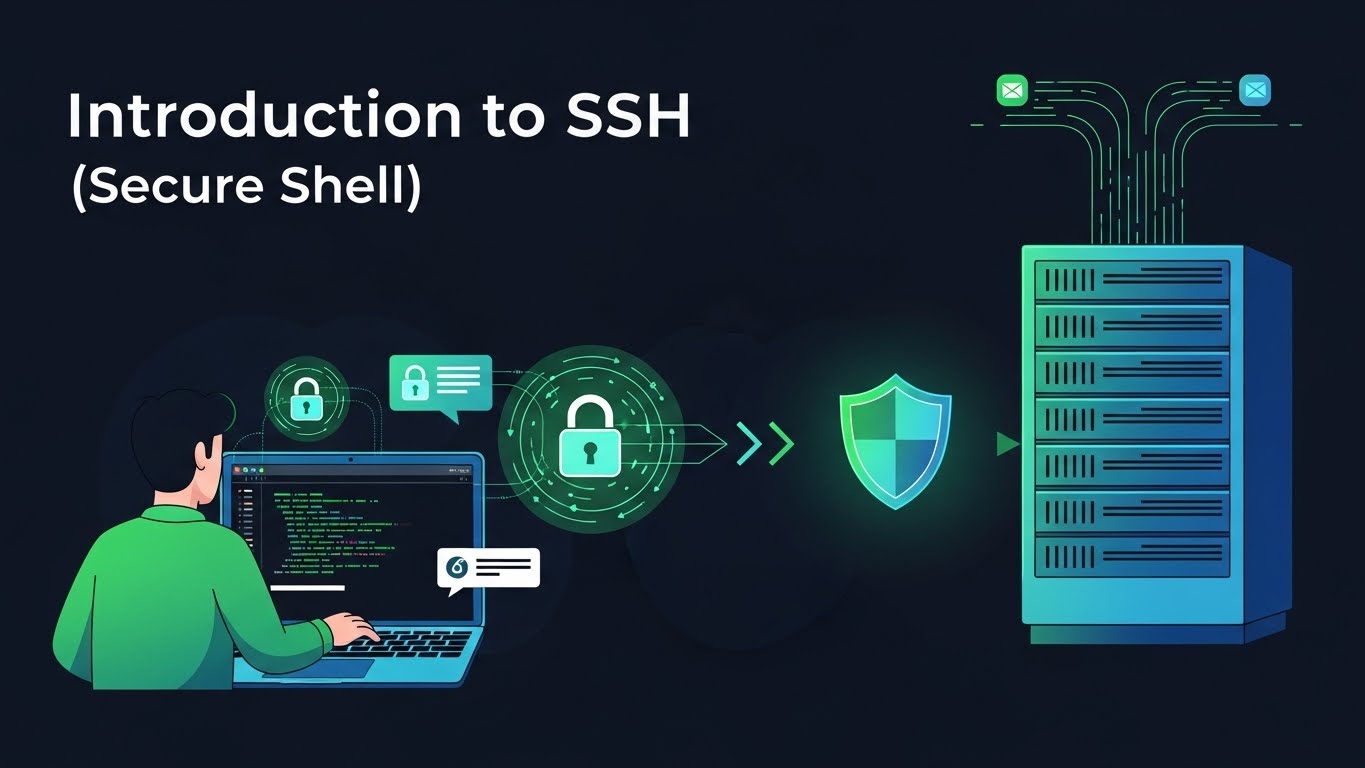
Generating and Using SSH Keys
Step 1: Generate a Key Pair
On systems with OpenSSH (Linux, macOS, modern Windows), use ssh-keygen.
A modern default is Ed25519:
ssh-keygen -t ed25519 -C "your_email@example.com"Options:
-t ed25519: Use the Ed25519 key type (fast and secure).-C "comment": Adds a label to the key, e.g., your email.
You’ll see prompts:
-
Key file location Enter file in which to save the key (
/home/youruser/.ssh/id_ed25519):- Press Enter to accept the default, or
- Provide a custom path if you need multiple keys.
-
Passphrase Enter passphrase (empty for no passphrase):
- A passphrase encrypts your private key at rest.
- If possible, always set a strong passphrase.
After completion, you have:
- Private key:
~/.ssh/id_ed25519 - Public key:
~/.ssh/id_ed25519.pub
The private key must never be shared. The public key is what you place on servers.
Step 2: Copy Your Public Key to the Server
If ssh-copy-id is available (common on Linux/macOS):
ssh-copy-id user@server_ipThis:
- Logs in using your password (just this time).
- Appends your public key to
~/.ssh/authorized_keyson the remote server. - Fixes permissions automatically.
If ssh-copy-id is not available, copy manually:
- Show your public key:
cat ~/.ssh/id_ed25519.pub- Copy the output.
- Connect to the server with your password.
- On the server:
mkdir -p ~/.ssh
chmod 700 ~/.ssh
echo "your_public_key_here" >> ~/.ssh/authorized_keys
chmod 600 ~/.ssh/authorized_keys
Step 3: Log In with Your Key
Once the public key is installed:
ssh user@server_ipIf your key has a passphrase, you may be prompted for it. To avoid frequent prompts, use an SSH agent (ssh-agent and ssh-add), which caches decrypted keys in memory.
Common SSH Usage Patterns
Basic Remote Login
ssh user@server_ipuser: Remote username (root,ubuntu,ec2-user, etc.)server_ip: IP address or hostname (e.g.,203.0.113.10,example.com)
If your local username matches the remote one:
ssh server_ipUse a Non-Default Port
If SSH is running on a custom port, for example 2222:
ssh -p 2222 user@server_ipRun One Command Remotely
To execute a single command and exit:
ssh user@server_ip "uname -a"Examples:
- Restart a service:
ssh user@server_ip "sudo systemctl restart nginx"- Check disk usage:
ssh user@server_ip "df -h"This is very useful in scripts and automation.
Secure File Transfer with SSH
SSH also powers file transfer utilities like scp and rsync.
Using scp (Secure Copy)
Copy a local file to a remote server:
scp file.txt user@server_ip:/remote/path/Copy a directory recursively:
scp -r my_folder user@server_ip:/remote/path/Copy from remote to local:
scp user@server_ip:/remote/path/file.txt ./file.txtUsing rsync Over SSH
rsync is ideal for sync and backup workflows:
rsync -avz ./local_dir/ user@server_ip:/remote/path/Common options:
-a: Archive mode (preserves metadata)-v: Verbose-z: Compress data during transfer
By default, specifying user@server_ip: makes rsync use SSH as the transport.
Using ~/.ssh/config for Convenience
You can simplify connections by configuring hosts in ~/.ssh/config on your local machine.
Example:
Host myserver
  HostName 203.0.113.10
  User ubuntu
  IdentityFile ~/.ssh/id_ed25519
  Port 22
Now you can connect with:
ssh myserverBenefits:
- Short nicknames for servers
- Automatic selection of user, key, and port
- Cleaner scripts and commands when managing multiple environments